Pages

Showing posts with label edtech. Show all posts

Sunday, 8 March 2015

Uni of Greenwich Professional Development Day

Tomorrow I'll be delivering a 'Professional Development Day' for a group of PGCE students from the University of Greenwich. I will be informing them about the new computing curriculum and showing examples of best practice through my school's use of technology.

I am very much looking forward to seeing what the new breed of teacher already knows about computing, particularly as they only know the new curriculum. It shouldn't surprise me to find that a generous number of them are more 'tech savvy' than myself...

The plan for tomorrow will be to spend about 20 minutes discussing the new curriculum and the future of education. I will then spend a generous amount of time on a range of resources that we use in school - approximately 15 minutes each.

Planned resources:
  • iPad apps for coding: Bee-Bot, Daisy the Dinosaur, Kodable, Scratch Jr and Hopscotch
  • Other iPad apps: Explain Everything and Book Creator
  • MinecraftEDU
  • Scratch (will probably go through my coordinates lesson)
  • MaKey MaKey, Python and Raspberry Pi
Below is a copy of tomorrow's Prezi:

Tuesday, 3 March 2015

My ADE 2015 Application Video

Last weekend, there was an amazing buzz on my Twitter feed. The deadline for the annual Apple Distinguished Educator institute was looming and it seemed everyone was talking about it! There are some amazingly talented people out there...

I've been reading on many blogs and Twitter posts that the application process is a great opportunity to reflect on your current practice as a teacher, and they are all absolutely right. I found myself digging deep into the last few years to unearth my successes (and failures too, of course!)

I have not even joined the ADE community yet (fingers crossed though!) but the 'togetherness' I witness on Sunday night has got me very excited for the future. Everyone was wishing each other well with their applications, and best of all, sharing their application videos! I spent a huge part of Sunday evening watching clip after clip. Each one as inspiring as the last!

So here is my ADE application video. I hope you enjoy it as much as I enjoyed watching everyone elses! :)

Coding with a Positive Message!

I recently discovered some fantastic printable Scratch coding blocks and thought they would be great for some CSunplugged work! They are available to download here.


This evening I had a little idea. What if you could take some of these Scratch blocks and use them to create a positive message of encouragement for your pupils? I decided to give it a try, and this is what I came up with... while True:


This is a nice message that helps children understand a tiny bit of technical vocabulary around coding, but also gives them a useful message about never giving up! It reminds them that they may not be successful straight away, and that if that is the case, they should TRY AGAIN and work harder to reach their goal!

I wonder what other positive messages can be created using these Scratch blocks? I'd love to see what others can create!

Thursday, 26 February 2015

Are you a 21st Century Teacher?

Technology, whether you like it or not, is changing the way children learn and how educators teach. No longer are we closed off behind the four walls of our classrooms. Technology has helped bring the whole world to our doorstep. And I for one, couldn’t be more excited.

To quote a video that I saw on YouTube many years ago:
“We are currently preparing students for jobs that don’t yet exist...”


I love this video and that line has always stuck in my mind. The role of an educator is to prepare our children, as best we can, for their future. A significant amount of the most desirable jobs at present require some form of computing experience. A quick Google search turned up this list showing Software Developer, Computer Systems Analyst and Information Security Analyst in the top 10 ‘Best Jobs’.

With the new changes to the UK curriculum regarding Computing (here is a great CAS guide for primary schools), it seems that steps have been taken to provide children with at least a basic understanding of key computing concepts which they can build upon. This has forced teachers to move swiftly into a new area of teaching that perhaps they have never experienced before - Computer Science. And so the 21st century teacher was born!

BECOMING A 21st CENTURY TEACHER
A 21st century teacher is not the one who crowbars every imaginable piece of technology into their lessons. It is not using technology for the sake of using it. Therefore, a 21st century teacher should use technology appropriate in order to create an engaging learning environment. It is no surprise to anyone that children generally enjoy using computers, iPads, playing Minecraft, etc. So if an educator can harness the engaging power of these technologies, and uses them smartly to deliver a challenging curriculum, then there is your ‘engaging learning environment’.

In order to become a 21st century teacher, you do need to know your stuff. This is pretty obvious, of course, as how can you prepare children for their technologically advanced future without the subject knowledge yourself? This doesn’t mean going back to university to get a degree in Computer Science, but instead you can spend a little time with some quality resources. That is all… Play around with it and ask questions.

A great teacher knows the tools needed to teach. Most schools these days will have a computer in every classroom with an interactive whiteboard connected to it. A lot of schools are starting to purchase mobile devices, such as iPads. These are the tools for the modern classroom, so learn how to use them. The 21st century teacher does.


We must not forget that being able to use technology isn’t the end goal here. Using technology still has value and is, of course, very important within the curriculum, but we need the next generation of software developers to create technology too. The Raspberry Pi is an incredible piece of hardware that many schools have been picking up which allows children to do just that. The possibilities are endless! If you have not discovered the credit card sized computer yet, and you want to become a 21st century teacher, get yourself one! (I have four!)


Lastly, here is a very popular image that has surely made its way onto your social media feed at some point in the last year or so. Want to become a 21st century teacher? See how many you can cross out before the end of the year… GO!


Monday, 23 February 2015

Using Hopscotch to Create Story Animations

I have been spending a huge amount of time with Hopscotch on the iPad in the last few days. It would seem that an obsession is growing...

As you can see from some of my earlier posts, I do like to play around with Scratch to create fun little games and projects, and if I'm honest, I hadn't really used Hopscotch much since hearing about it a couple of years ago now. Then I saw a link to one of their YouTube videos:


After watching it, I immediately wanted to give it a try! With my Scratch experience safely tucked under my belt, I ventured into the wonderful world of Hopscotch!

So obsessed am I, that I have created three YouTube videos so far! Each one has progressively become more and more elaborate. 'The Magic Minecraft Pencil' even became a full animation piece. Here are my three videos in a playlist:


This really is a great app, and perfectly introduces children of primary age to coding. It is very easy to create something, and that something may be a simple animation or even a hugely complex game. I would aim this app at children in key stage 2 as there are other apps like Scratch Jr and Kodable that I would give to key stage 1 and Early Years first. That's not to say Hopscotch couldn't be used at all in those phases, of course!

I always like to look for cross curricular links in all of my teaching, and creating animations in Hopscotch could very easily support children in the writing of short stories or even non-fiction writing (instructions perhaps!) Children could either create the Hopscotch story scene first and use that as a stimulus to write their story. Or, they couldn't create the story first and then try to bring it to life in Hopscotch.

Happy Hopscotching!

Tuesday, 17 February 2015

Using Scratch in Other Areas of the Curriculum

I have been using Scratch for a couple of years now, and while I'm definitely not a pro by any stretch of the imagination, I have found a couple of different ways to incorporate it into other areas of learning. The reason for this is the children I have worked with have always found it very engaging, even if a tad challenging at times (what's wrong with that?!)

One obvious link to computing is mathematics.

Coordinates
Here is a Scratch project I created for a coordinates lesson that I taught with some more able Year 5 children about a year ago. To see inside the project click here.


The idea was to get the children to create a variety of shapes in any of the four quadrants on screen. As you can see from the image below, all the children had to do was change the x and y values in the blue 'motion' blocks. Remember, this was a maths lesson and not a computing lesson. I tried to take away as much as possible from the computing side of things. The most they had to do was know to take away one 'wait' and 'go to...' block to create a triangle (one less side).


The children really enjoyed doing this activity. It was much more interesting and engaging than completing a similar task in their maths books!

But don't worry if you are not too familiar with Scratch at the moment! You will probably find something great to use in your lessons by using the search function on the site. There are lots of clever people within the Scratch community and they have probably already created something special just for you ;)

Monday, 9 February 2015

Safer Internet Day 2015

As it's Safer Internet Day tomorrow, here's a great idea to help young children understand their responsibility to be respectful online.

Childnet have published a great little story about a duck called Digiduck which I have read to my Year 2 children (link to the online story by clicking on the front cover below). Now that the children know the story, I have reduced it to the main events and imported those pages into one of my favourite apps, Book Creator.

Tomorrow, I'll be asking the children to add whatever multimedia they like to the book - sound clips, videos, etc. This will allow them to comment on the story as it progresses!

I have created an example to show the children and you can download it here! There are lots of hidden sound clips so try tapping on a couple of characters faces to see what happens.

My favourite part of the eBook is the final page, where there are 4 key questions to check the children's understanding. Here the children will record their responses in video or sound clips again!

I will be using some of my children's stories to collate a school Internet Safety eBook. I've asked all the teachers in my school to create a year group 'chapter' each about a different aspect of eSafety. Once I have collected all the chapters, I'll combine them all into a great book!

I'm looking forward to tomorrow!

Sunday, 8 February 2015

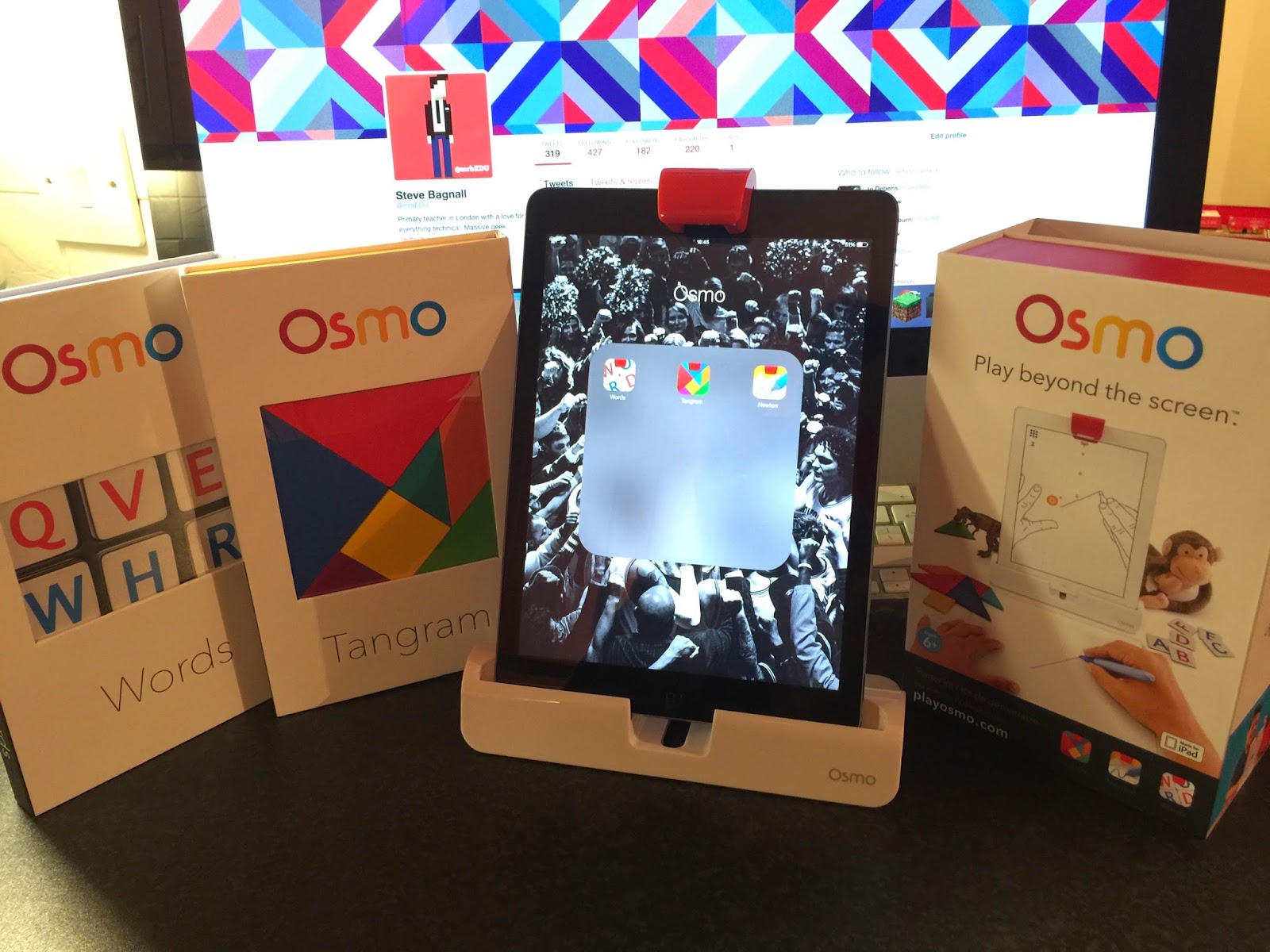
The Osmo Game System

With the help of Mr. P and has amazing ICT Blog (go check it out!), I discovered a great little toy recently - The Osmo!
www.playosmo.com
If nothing else, I'll be getting a lot of hours of fun out of it myself... However, I really like it as a simple tool to engage children in solving puzzles through the use of critical thinking skills.

On the box, the Osmo suggests it is a 'unique gaming accessory for the iPad that comes with games that will change the way your child plays'. Indeed... Quite a bold statement! But the Osmo really is pretty special. Let's see how it works!

The first thing out of the box is the base and reflector. Your iPad sits in the base and the reflector slips over the front facing camera, which contains a mirror in order to allow the iPad to "see" in front of it - clever!

iPad with base and reflector attached
The Osmo currently comes with three games - Tangram, Newton and Words. All three apps can be download for free from the App Store, but the hardware is needed to play, of course!

This is a physics game that will feel fairly familiar, in which you have to make the falling balls land on targeted zone by putting any object on the 'playing field'. The objects that you place can literally be anything - a pen, a set of keys, your own hand! You can also place a piece of A4 paper in front of the iPad and draw lines on the page...


Newton
Tangram is a lot of fun! You need to arrange the physical tan pieces to match the on-screen shape. You can start off with a simple puzzle where you are told which shape goes in which position, and quickly progress to the real challenge of having a complete silhouette with no guidance at all. I could see this being very popular in a classroom and having the iPad there to interact with will make it so much more engaging!

Tangram
The last game in the set is Words and, as with all three, it is a familiar game played in a more engaging digital way. This is the Osmo's take on Hangman. Words is a two player/team game with each side having their own complete alphabet on small tiles. A picture clue will appear on the screen and both players have to frantically work out what the word in and then fling the correct letters in front of the iPad. Obvious links to consolidating phonics skills here, as well as developing those all important critical thinking skills too.

Words
Ultimately, I really like the Osmo. It has rejuvenated some classic games/puzzles and I know for a fact the kids'll dig it!


Saturday, 7 February 2015

Apps that rock my world!

It's been a long while since my last blog post and lots has happened since. So I'm going to make a very late New Year's resolution to try to make an effort to post more regularly.

Having paid a visit to the BETT Show a few weeks ago, I'm eager to share some of my favourite toys for the iPad that can be used in the classroom. I'd like to mention that I don't usually like these kind of blog posts... Too often the apps are very specific in their function and can only be used in certain lessons/situations. I have picked these apps based on their ability to be used throughout the curriculum. So, I'd like to present to you...

My Top 5 iOS Apps:
Book Creator
Book Creator
I've been using this app for a few years and the children in my class love the ability to create their very own multimedia eBooks. I often use it to allow the children to review their learning. For example; during a maths lesson on solving word problems, I asked the children to record themselves explaining the solution! I also love the ability to App Smash with Book Creator - create an image and video in another app and simply import it in!

Chatterpix
This app is a new discovery for me and I absolutely love it! It essentially allows you to turn anything into a living talking creature by taking a photograph of it and drawing a simple line mouth. Children can then record their own message. It is easy to imagine how this could be used in the classroom. I recently had some Year 2 children creating talking foods to describe their smell using similes!

YAKiT Kids
YAKiT Kids
YAKiT Kids is very similar to Chatterpix but allows you to add cartoony eyes, noses, mouths and more onto your own photographs. You can then record an audio message and watch your image come to life! What a fantastic way to create new characters and allow the children to bring them to life!

Google Classroom
Google Classroom
Google have finally released their iOS app for their fantastic Google Classroom service. I posted previously about how excited I am about this and the app has made things even more accessible. It seems to be mainly geared towards student access, rather than for teachers but it's perfectly fine by me.

ThingLink

ThingLink
Another new one to me, but again, it's easy to see the huge amount of potential there is for both students and teachers! With this app you can basically add text, web links, pictures and videos to your images. Maybe you'd like your children to label the countries within a continent? Or label the bones in the human body? This can be done in a much more interactive and creative way thanks to ThingLink.

If you have found any apps that are worth mentioning, please let me know!

Sunday, 24 August 2014

Google Apps for Education starring Classroom

iPod 3rd Gen.
Apple
For the last 5 years or so I have been what most would call an "Apple Fan Boy". I've had the iPhone since the 3GS and now am rocking a fairly "retro" iPhone 5 (upgrade due next year! Grrr) Actually, my first Apple product would have been one of the earliest iPods - you know the one with the touch wheel with four glowing red buttons above it?

I loved that thing! It was released in 2003 so it's probably more like 11 years ago that I started my love affair with Apple. But back then I was still syncing my beautiful, slick 3rd Gen iPod up to a Windows PC. It did the job.

Fast forward to late 2011. I finally took the plunge (and saved enough money!) to purchase my first iMac. Shortly after that, in my role as ICT Coordinator within my school, I finally persuaded my Head Teacher to move the whole school over to Macs. I have barely touched a Window PC since.

Apple iMac
Google
But now, in 2014, I think I'm finding myself drawn to another. Google have been incredibly impressive of late in the education world. With Google Apps for Education (GAfE), they have created something that I'm extremely excited about. Google Apps have been around for a good while now and I know I'm not jumping on GAfE early, by any means. But after recently introducing Google Classroom to the world, my excitement has been increased dramatically.


Using Google Apps in School
I first introduced Google Docs to my staff as a cool way for the children to collaborate together on a single document. I simply created a Google account for each year group so they could login and away they went. This was ground breaking for me. The children could write together on a single piece of work! Not taking it in turns, but complete collaboration for the first time on a word processor. Now Google have a complete suite of Apps including Gmail, Calendar, Drive, Hangouts and very recently Classroom. They have covered everything needed in a school (and business) environment - For teachers as well as pupils. Personally, I've always used Yahoo for my email, Dropbox for cloud storage and Apple Calendar for my... erm... calendar! Yet now I am definitely moving towards Google's suite of Apps, especially Drive.

Google Classroom
One of the reasons I've always loved Apple is that all their products work together seamlessly. The same is true for GAfE, but it's the introduction of Classroom that shows this off perfectly. Now, as Classroom is only a matter of weeks old, I haven't used it with children yet. However, I have tested it fairly well with a 'test pupil' account and it has me seriously excited to roll this out in my school! The home screen of your Classroom is incredibly simple.
My Google Classroom
Click the + next to your email address to create a class. Give it a name and it will appear on your home screen - told you it was simple! As you can see, I have two Classrooms - one for my class next year, and one for staff. Each class has a unique code for you to give to whoever you wish to join your Classroom. Once you have 'students' in your classroom, you are ready to go!

As well as being able to communicate much more efficiently with the class via announcements, the teacher can set assignments. This is where the suite of Docs, Slides and Sheets, used through Drive come in.
As you can see I have set an assignment for my Year 2 class to write a brief recount of their summer holiday. The children will see this in their list of assignments and be given the option to create a new document using Docs, or they can upload a Word document from their computer. Once they have completed the task, they submit their work which then appears as 'done' on my screen. Here is the best bit... Feedback! As the teacher I can now comment on the work done and, if needed, send it back to the child for improvement. They would then resubmit it through Classroom once finished.

Staff CPD
After playing around with Classroom for a few days, I realised that not only can it be used with the children in schools, but also for staff professional development. So I created my 'Staff' classroom!
Do you ever find yourself wanting staff to complete something for you and never get it back? They are incredibly busy people after all and paper is very easy to put down and never find again! As an example, I have added a computing audit for my staff to complete in order to find out what their knowledge and experience is of computing. A copy of the document will magic itself into their free 30GB Drive storage, they would complete it and then submit it back to me through the classroom. Various other tasks and announcements could be created all in one place.

So, there you have it. Google are fighting for my love... and winning! Pull your socks up Apple... :)

Mr B

Questions to you:
I'd love to know what your experiences are in using GAfE. How are you using it? What age group are you using it with? Your success stories?

Friday, 22 August 2014

First Post

Hey! How are you doing? It's really nice to meet you...

This is kind of a test post to be honest. But I'm glad you found my little corner of the internet! Pull up a chair... Would you like a drink?

Here, I'll be posting various interesting (to me, and hopefully to you too) things from the wonderful world of computing, from the perspective of a primary school teacher with no computing qualifications at all...

The fact is, I love computers and technology. It absolutely excites me! Sometimes (often) I spend far too long on Twitter, trying to find out the next new thing. I love using technology to a) make me more efficient in my life/work, and b) to make my life/work more interesting!

So, of course, I'm incredibly biased in using technology in schools. It's not the only way to deliver inspiring content to our pupils. But used correctly it can blow their little minds :)

I completely understand that there are a lot of teachers out there that don't use the latest and best technologies available to them in their schools for a variety of reasons. But there is one reason I can't understand... Not giving it a chance. I have learnt everything I know about technology and computers by "playing around" with it. Something new arrives, I tinker with it. I don't have to master it, but I'll play around till I can see the benefits it may bring to my classroom.

As educators we have an obligation to keep up-to-date with current pedagogy. Technology is everywhere and it isn't going to go away anytime soon. The longer we leave it to catch up, the harder it'll become to be a teacher in this modern world.

Well, That's much more than I expected to write in this first blog! I hope to post more about specific aspects of the new curriculum and on various technologies as the year progresses.

Thanks for reading,
Mr B